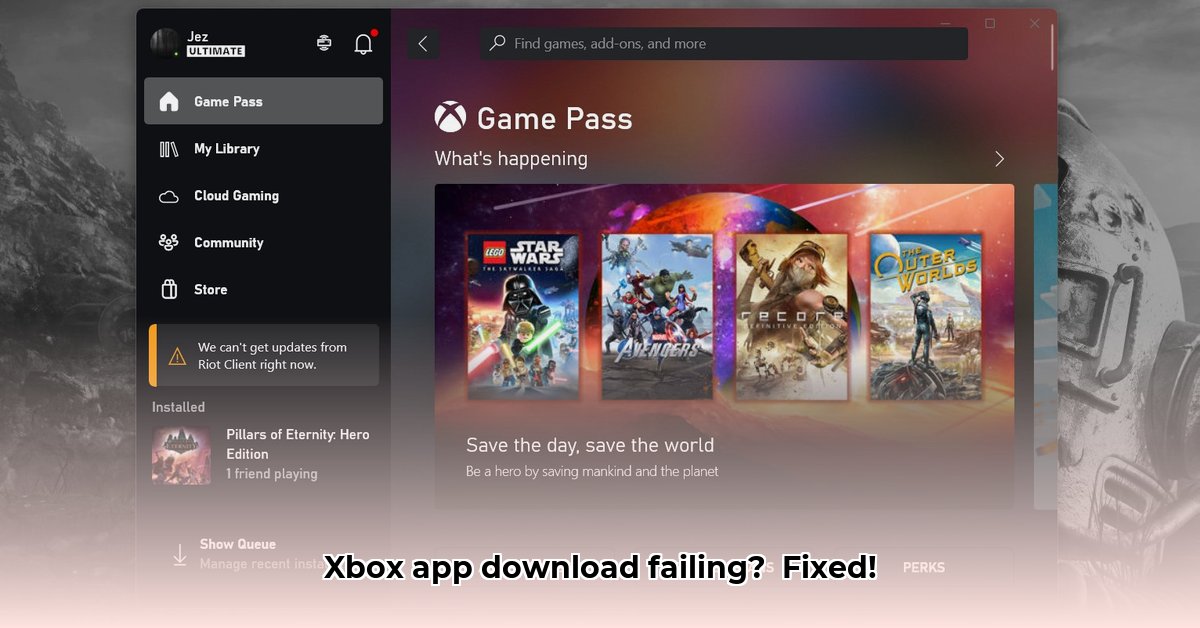
Why Can't I Download Games on the Xbox App?
Experiencing download issues with the Xbox app? You're not alone. Many gamers encounter problems ranging from frustrating download stalls to cryptic error codes like 0x803FB107 and 0x80072f8f. This guide provides step-by-step solutions to get you back to gaming quickly.
Internet Issues: Troubleshooting Your Connection
A faulty internet connection is the most frequent culprit. Think of your internet as the delivery truck bringing your games; if the road is blocked, the delivery is delayed.
Run a Speed Test: Use a free online speed test (search "internet speed test") to check your download and upload speeds. Is it significantly slower than usual or your plan's advertised speed? Contact your internet service provider if necessary.
Reboot Your Router and Modem: A simple restart can resolve temporary glitches. Power cycle your router and modem (unplug, wait 30 seconds, plug in the modem first, then the router), and wait for them to fully restart. Try your download again.
Check Firewall and Antivirus Settings: Your security software might be blocking the Xbox app's internet access. Temporarily disable your firewall and antivirus (Important: Re-enable them immediately afterward). If the download works, add the Xbox app as an exception in your firewall or adjust your antivirus settings.
Change Your DNS Settings: Incorrect DNS (Domain Name System) settings can hinder downloads. Consider using public DNS servers like Google's (8.8.8.8 and 8.8.4.4). (Search "change DNS settings Windows [your Windows version]" for instructions.)
Computer Maintenance: Cleaning Up Your System
A cluttered computer can impede game downloads, much like a cluttered desk hinders productivity.
Run the System File Checker (SFC): Windows includes a tool to repair corrupted system files. Open Command Prompt as administrator, type
sfc /scannow, and press Enter. Allow it to complete.Run the Deployment Image Servicing and Management (DISM) Tool: If SFC doesn't resolve the issue, try DISM. In the administrator Command Prompt, type
DISM /Online /Cleanup-Image /RestoreHealthand press Enter. This process takes time.Reinstall the Xbox App: A fresh install can often fix corrupted app files. Completely uninstall the Xbox app, restart your computer, and then reinstall it from the Microsoft Store.
Account and Profile Troubleshooting
Your Microsoft account is key to accessing Xbox games. Let's ensure it's configured correctly.
Check for Account Restrictions: Log into your Microsoft account (account.microsoft.com) and verify there are no download or purchase restrictions.
Contact Microsoft Support: If previous steps fail, contact Microsoft support for expert assistance ([Link to Microsoft Support]).
How to Fix Xbox App Download Error Code 0x803FB107
This error frequently interrupts downloads, often around the 4% mark, due to network problems, software conflicts, or server issues.
Troubleshooting Steps for Error Code 0x803FB107
Restart the Xbox App and Your PC: A simple reboot often resolves temporary glitches.
Verify Your Network Connection: Ensure a stable internet connection with sufficient bandwidth. Run a speed test if necessary.
Free Up Hard Drive Space: Games are large; ensure ample free space on your hard drive.
Update Windows: Outdated Windows can conflict with the Xbox app. Check for and install Windows updates.
Reinstall the Xbox App: Uninstall and reinstall the app from the Microsoft Store.
Check for Software Conflicts: Temporarily disable any potentially conflicting software.
Contact Microsoft Support: If all else fails, seek help from Microsoft support.
Key Takeaways:
- Error code 0x803FB107 frequently halts Xbox app downloads, often near the 4% completion mark.
- Causes include network connectivity problems, software conflicts, or server-side issues.
- Quick fixes involve restarting the app and PC, checking your internet connection, and ensuring sufficient storage space.
- More involved solutions include updating Windows and, as a last resort, contacting Microsoft support.
⭐⭐⭐⭐☆ (4.8)
Download via Link 1
Download via Link 2
Last updated: Saturday, May 03, 2025